











The Cost of Goods Sold (COGS) Report is a core component of business accounting that directly influences profitability, pricing, and inventory control. Within GlassJar Accounting Software, the COGS Report provides detailed visibility into the true cost of producing or purchasing the goods your business sells.
It’s one of the most critical financial reports for product-based businesses and is often used in conjunction with income statements, inventory summaries, and margin analysis tools.
Available Data
- Vendor Name
- Vendor Email
- Vendor Address
- Expense Transactions
Available Filters & Sorting
- Transaction Date
- Vendor Name
- Vendor Address
- Expense Amount
Available Totals
- Vendor Count
- Transaction Count
- Expenses
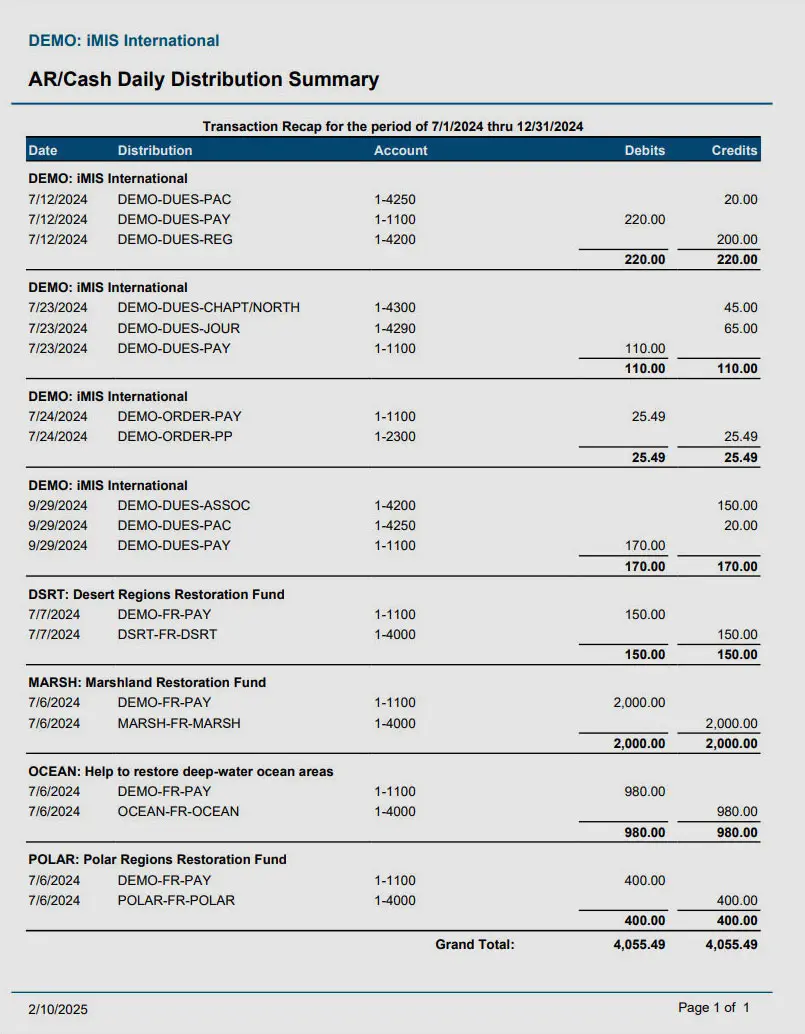
COMING SOON
What Is the Cost of Goods Sold Report?
The Cost of Goods Sold Report shows how much it cost your business to produce or acquire the products that were sold within a given period. It calculates the direct costs associated with production—typically including raw materials, labor tied to manufacturing, and direct factory overhead. For resellers or retailers, it reflects the purchase cost of inventory items that have been sold.
The report usually breaks down the COGS by product or product category and aligns each cost with the corresponding sale. This offers a line-by-line view of profitability and lets business owners track cost trends over time. COGS is a variable cost, meaning it changes based on sales volume, and is directly tied to the business’s gross profit margin.
Components of Cost of Goods Sold
In most businesses, the cost of goods sold includes:
- Inventory at the beginning of the period
- Purchases made during the period
- Cost of labor directly associated with production
- Supplies used in production or packaging
- Inventory at the end of the period
Using the formula:
COGS = (Beginning Inventory + Purchases + Direct Costs) – Ending Inventory
GlassJar automates this calculation by syncing your inventory, purchase records, and sales history in real time. This ensures your COGS Report remains accurate as new transactions occur.
How the COGS Report Helps Your Business
The Cost of Goods Sold Report plays a vital role in determining how much profit your business actually earns. While sales figures show revenue coming in, COGS reveals the expenses incurred to generate that revenue. Without understanding the cost side, it’s impossible to assess profitability or plan pricing strategies effectively.
The COGS Report helps with:
- Monitoring profit margins: By showing how much it costs to fulfill each sale, you can identify which products offer healthy margins and which ones may be underpriced.
- Inventory management: Identifying inventory items with rising costs or slow turnover allows you to adjust purchasing decisions or discontinue low-performing products.
- Tax reporting: Cost of goods sold is a deductible expense on business tax filings. GlassJar’s COGS report is formatted to support year-end tax preparation or CPA collaboration.
- Budgeting and forecasting: Fluctuations in COGS can help anticipate trends in supplier pricing or changes in production efficiency.
Who Should Use the Cost of Goods Sold Report
Any business that deals with physical products—whether manufacturing, wholesale, or retail—should review the COGS Report regularly. It’s especially important for:
- Manufacturers, who need to track direct materials and labor
- Ecommerce stores, that rely on dropshipping or warehouse-based fulfillment
- Retailers, managing high volumes of inventory turnover
- Resellers, who buy products in bulk and need accurate cost tracking
Even service-based businesses offering physical products or packages with tangible components can benefit from reviewing COGS when assessing profitability.
Real-World Scenarios for Using the Report
The Cost of Goods Sold Report becomes especially useful in the following scenarios:
Price Review Meetings
If you’re assessing whether your current pricing structure is sustainable, the COGS Report helps reveal how costs have trended over time and whether your markup still ensures profitability.
Supplier Cost Increases
When a vendor increases their rates, a side-by-side view of historical and current COGS for affected items can help determine how that increase has impacted margins and whether to renegotiate terms or find alternatives.
Inventory Shrinkage Investigations
If there’s a sudden drop in profits or inventory seems to be disappearing, the COGS Report can reveal inconsistencies in costs that may point to losses from theft, spoilage, or clerical errors.
Year-End Financial Review
During tax season or year-end reporting, accountants and tax preparers will often start with the COGS Report to determine which expenses are deductible and how they’ve influenced taxable income.
Seasonal Sales Planning
If certain products sell more during a specific quarter or season, COGS reports from previous years can inform decisions about how much to stock and what margins to expect.
How GlassJar Handles COGS Calculations
GlassJar’s accounting software links sales transactions, inventory adjustments, and purchase records into a seamless workflow. As items are sold or marked as fulfilled, the system automatically deducts inventory and adjusts the Cost of Goods Sold based on your selected accounting method.
GlassJar supports:
- FIFO (First-In, First-Out): Costs are calculated assuming the oldest inventory is sold first.
- LIFO (Last-In, First-Out): Costs assume the newest inventory is sold first.
- Average Cost Method: Costs are averaged across inventory batches.
These methods allow for customizable reporting that matches your business model and accounting standards. Users can select their preferred COGS method in account settings and apply changes retroactively or on a forward-looking basis.
COGS and the Income Statement
On a typical income statement, revenue is listed at the top, followed by the cost of goods sold. Subtracting COGS from revenue gives you the gross profit—a key indicator of how efficiently your business converts products into earnings.
GlassJar automatically syncs the COGS Report with your Profit and Loss (P&L) Statement so you can view the relationship between sales and costs at a glance. This integration means you don’t have to manually reconcile numbers between systems or reports.
Comparing the COGS Report to Other Financial Reports
While the Cost of Goods Sold Report is essential for tracking direct product costs, it should be read alongside other key reports for a full picture of your business finances.
Income Statement (Profit and Loss Report)
While COGS feeds into this report, the Income Statement also shows indirect expenses like rent, payroll, and software costs. Use both reports together to understand gross versus net profitability.
Inventory Summary Report
The Inventory Report shows current stock levels, valuation, and turnover rates. When read alongside COGS, you can assess how your inventory flows through the business and identify inefficiencies.
Sales by Product or Category
This report reveals which items drive the most revenue. Comparing sales data to COGS helps determine whether your best sellers are also your most profitable products.
Vendor Purchase History Report
Understanding what was purchased and when helps tie COGS back to your vendor relationships. If COGS increases unexpectedly, vendor histories can help pinpoint the source.
Why Accurate COGS Reporting Matters
Errors in the COGS Report can mislead decision-makers about profitability, tax obligations, or inventory health. GlassJar ensures accuracy by linking every cost entry to a product SKU, invoice, or expense record. This makes audits or financial reviews more transparent and easier to resolve.
Business owners often discover that certain products are far less profitable than they assumed after reviewing the true cost of each sale. Over time, this can guide better pricing, purchasing, and production strategies.
Adjusting and Auditing the COGS Report in GlassJar
GlassJar gives administrators and accountants the ability to audit and edit COGS entries when necessary. You can filter the report by date, product, or sales channel, export data to CSV, and compare different periods side-by-side.
For multi-location businesses, COGS can be broken down by warehouse or region, helping you evaluate which parts of the business are operating most efficiently.
Setting Up Automated COGS Tracking
To get the most out of your COGS Report, ensure that:
- Each product has an assigned cost in your inventory settings
- Purchase orders are matched to inventory receipts
- Sales orders and inventory fulfillment are synced
- You’ve selected your preferred COGS calculation method
Once set up, GlassJar will automatically update your COGS Report as inventory moves in and out of the system. This ensures real-time reporting and removes the guesswork from financial analysis.
Similar Accounting Reports Worth Reviewing
In addition to the COGS Report, GlassJar provides complementary reports that enhance your understanding of costs and profitability:
- Gross Profit by Product Report, showing how much each SKU contributes after cost
- Inventory Valuation Report, for understanding the total value of inventory on hand
- Purchase Order Reports, which show historical buying costs and quantities
- Sales Margin Report, helping identify high-cost/low-margin items that may need repricing or bundling
These reports, when used alongside COGS, provide a 360° view of how your business earns, spends, and profits from inventory.