












Unfortunately, technology has made accounting more complicated than it needs to be. Today’s accounting software is stuffed full of features you don’t use, and workarounds you’re forced into. GlassJar is designed to simplify the way you do bookkeeping.
Single-Screen Transaction Entry

Gone are the days of switching back and forth between different pages to get things done. In GlassJar, you can enter income, expenses, invoices, bills, and more – all from a single screen.
Same Person, Same Contact
QuickBooks forces you to create duplicate contacts if the same person is both a customer and a vendor, or a contractor. It also doesn’t allow contacts with the same name, which is super frustrating.

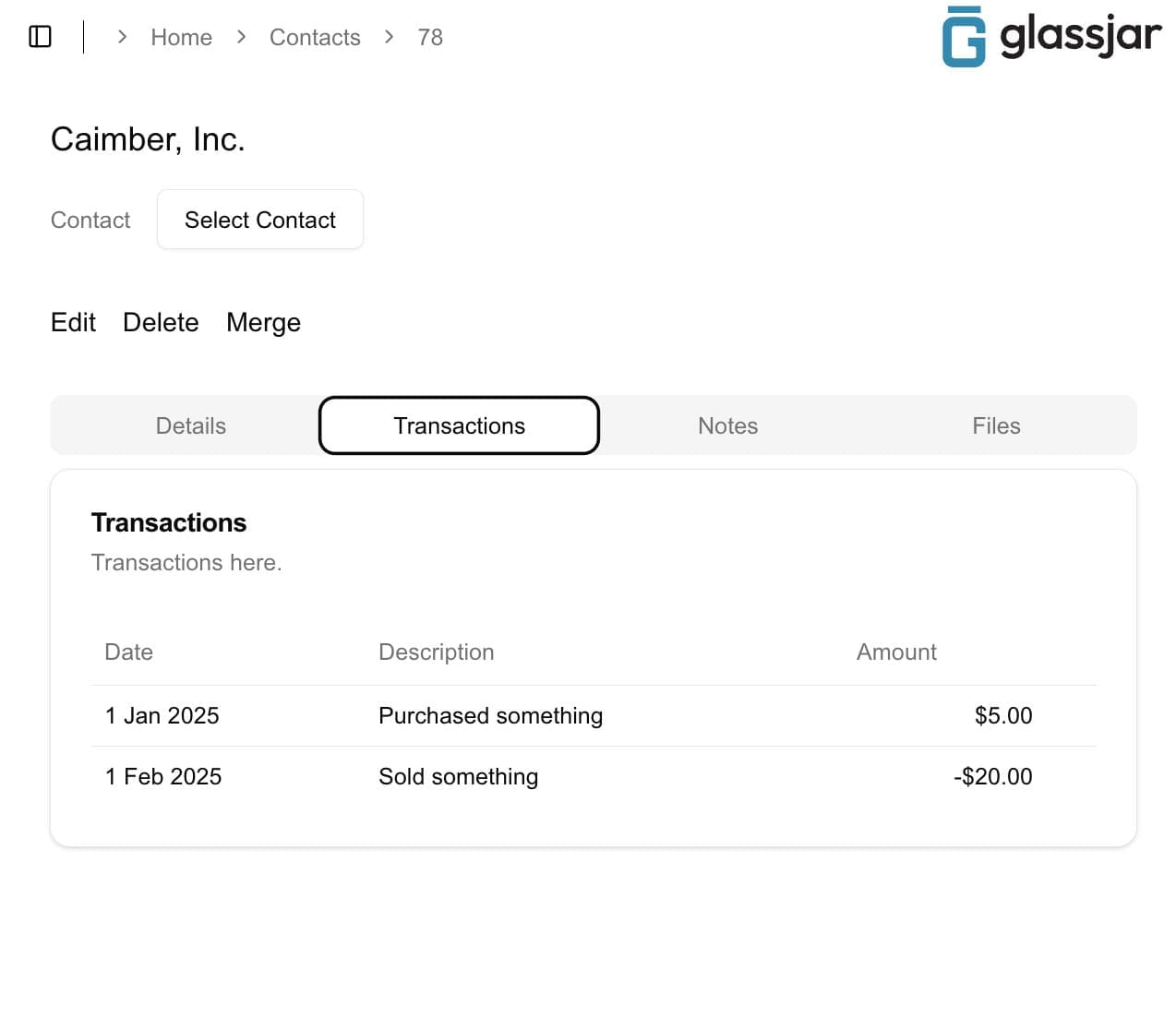
In GlassJar, your contacts can be both a customer and vendor, or even a contractor. And just like in the real world, you can have multiple contacts with the same name.

Search our full library of reports and add only the ones you need to your account, so your dashboard stays focused on what matters.
Add Only The Reports You Use
QuickBooks dumps dozens of financial reports into your account, many of which you never use.
Explore More Features
How We Help Accountants Stay On Track

GlassJar is more than just accounting software. It’s a smarter, simpler way to stay organized, accurate, and ahead of the curve. Built to support the unique workflows of modern accountants, our platform offers intuitive tools that help eliminate busywork and reduce errors before they happen.
Whether you’re managing multiple clients or reconciling a single business account, GlassJar makes it easy to keep everything on track. Use built-in bookkeeping software to automatically sync transactions, generate real-time reports, and stay tax-ready year-round.

Foundational Features
Less Clicks
Do more with less clicks. Add entries and people of any type in one place.
Report On Anything
Combine any type of data with our drag-and-drop report builder.
No Duplicate Contacts
Contacts can be both a customer and vendor at the same time.
Data Friendly
Run reports and export small to large data files with ease and lag-free.
Better Audit Logs
Reliable audit logs that don’t continuously spiral into oblivion.
It’s Not QuickBooks
We took the things that people dislike about QuickBooks and fixed them.
GlassJar’s accounting tools are purpose-built to integrate smoothly, giving you a clear financial picture without the clutter or complexity.
Sign Up To Get EARLY ACCESS To GlassJar
Be the first to know when GlassJar accounting software launches in your area. Sign up for updates today.
Accounting Software So Good It Makes You Want To Hug Your Kids
Accounting is about more than numbers. It’s about confidence. With GlassJar, you’re equipped to do your best work without second-guessing your tools. Our software eliminates manual errors, streamlines routine tasks, and keeps everything in sync so you can spend less time double-checking and more time with things that matter.

Streamlined Financial Management: Your All-In-One Solution
Our platform offers a comprehensive, all-in-one financial management solution designed to simplify and centralize your accounting workflows. Every component is engineered to automate repetitive tasks, improve accuracy, and give you complete visibility into your financial health.
Effortless Integration with Credit Card Transactions
One of the standout features is seamless credit card data integration. No more manual imports or error-prone copy‑pasting. Once you link your credit card accounts, GlassJar automatically pulls in transaction details, vendor names, dates, and amounts. These entries appear in real time, ready for review. This ensures your balance sheet is always updated with the latest liabilities and expenditures. It also empowers you to monitor spending, plan budgets, and reconcile balances without needing to log into banking portals.
Intelligent Categorization and Automated Bookkeeping
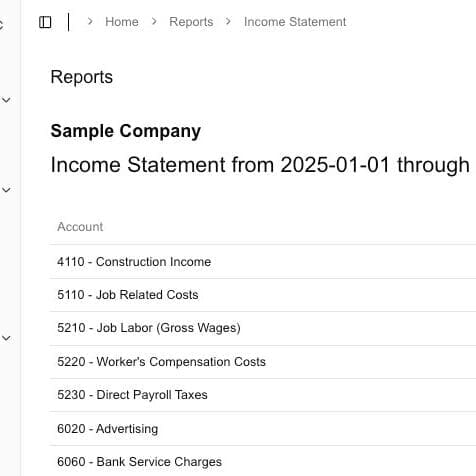
Categorizing transactions is essential for accurate financial reporting. Our software uses smart rules and machine learning to categorize expenses automatically, based on vendors, amounts, and user behavior. Recurring transactions, such as monthly subscription fees, utility bills, or vendor charges, are recognized and categorized automatically once defined. This feature reduces manual errors, cuts out repetitive monthly work, and ensures consistency for accounting and tax preparation purposes.
Manual overrides are always available. If a transaction is misclassified, you can quickly adjust the category, and the system learns from your correction moving forward, continuously improving accuracy across all your bookkeeping.

Automated Reconciliation and Balance Sheet Updates
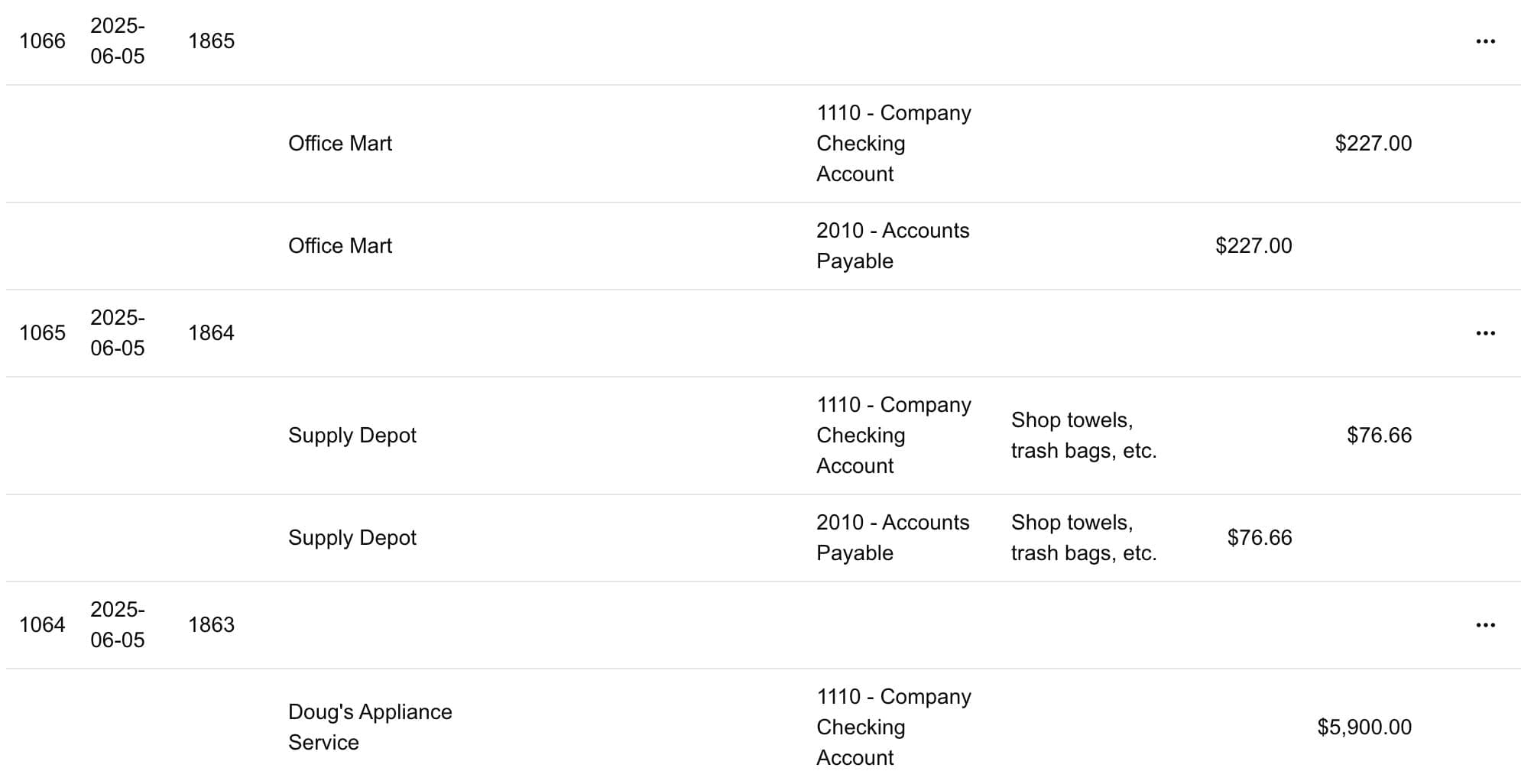
The platform’s powerful reconciliation engine contrasts imported credit card entries against your uploaded or linked bank statements. Unmatched entries are flagged for your review. Confirmed matches are posted to the balance sheet, updating asset and liability accounts in real time. This means you always have access to up‑to‑date financial positions, with accurate values in current assets, credit card liabilities, and cash reserves.
Because the process is largely automated, reconciliation becomes a quick review instead of a long manual chore, letting you focus on analysis instead of data entry.
Consolidated Reporting: One Dashboard for Multiple Accounts
Since GlassJar is an all-in-one platform, it consolidates data from credit cards, bank accounts, invoices, and expenses in one central dashboard. You can:
- Review current credit card balances next to cash balances
- See categorized expense breakdowns across vendor types
- Access visual charts on monthly spending by category
- Monitor liabilities and net assets on your balance sheet
Everything feeds into live financial statements. You can drill down into any category, remove or reassign entries, and view historical trends.
Custom Rules for Speed and Accuracy
To enhance efficiency, you can define custom rules for transaction categories, keywords, vendors, or amounts. For example, any transaction over $500 tagged “Marketing” is automatically routed to the Marketing Budget category. Rules let you scale the automated system easily and maintain consistent bookkeeping across growing volumes.
Audit Ready Documentation and Compliance
Every transaction, including credit card charges and manual adjustments, is timestamped and traceable. Audit logs show who categorized or edited entries and when changes were made. The platform stores receipts, statements, and memos alongside each transaction. This helps maintain clean records for tax season, audits, or regulatory compliance, with confidence and reduced risk.
Scalability that Grows with You
Whether you handle a small business, freelance consulting, or a mid‑sized operation, this all-in-one system adapts. Multi‑user access allows you to assign roles to team members, approving credit card charge entries, vendor categories, or monthly reconciliations. Historical balance sheet data across multiple periods is preserved, enabling quarterly or annual trend analysis and comparison.
What Makes GlassJar Different?
By integrating each module, including expenses, invoicing, budgeting, inventory, and tax compliance, into a single ecosystem, GlassJar positions itself as more than a sum of its features. It’s a unified accounting solution crafted to eliminate friction, reduce errors, and enhance visibility.
For small business owners, that means accurate numbers, predictable cash flow, and strategic planning. It is built to address real challenges while staying intuitive and accessible.
15 Reasons to Choose GlassJar Instead of QuickBooks
Running a small business means bookkeeping competes with everything else on your plate. GlassJar is built to take less of your time, not more of it.
1. One screen for every transaction
Most accounting software makes you hunt for the right screen: one for bills, another for invoices, another for journal entries. GlassJar puts every transaction type on a single entry screen. Less clicking, less relearning, less time lost to navigation.
2. Real-time cash flow, without the manual entry
Connect your bank and card accounts once. Transactions arrive automatically, categorized and ready for review, so your balance reflects reality without you logging into five different portals to check it.
3. Reports built around what you actually track
Our drag-and-drop report builder lets you combine any data you need, sales, expenses, cash flow, side by side. Compare periods, break down profit by project or client, and save the reports you’ll actually reuse.
4. Built for contractors and 1099 work
Track contractor payments and 1099 status as part of your normal bookkeeping, not a separate year-end scramble. GlassJar keeps contractor totals current all year, so tax season starts with numbers you already trust instead of numbers you have to reconstruct.
5. Expense tracking that doesn’t involve a shoebox
Snap a photo of a receipt, assign it to a category or project, and GlassJar matches it to the right bank transaction. Clean, audit-ready records without the manual filing.
6. Check printing that stays on-brand
Print checks with your own branding and consistent formatting, and every check is automatically logged in your books. No separate step to remember.
7. One contact, every role
QuickBooks forces you to create a duplicate contact if the same person is a customer, vendor, and contractor, and won’t let two contacts share a name. GlassJar allows one contact to hold all three roles, and doesn’t force you to rename anyone to avoid a conflict.
8. Inventory that updates itself Coming Soon
Stock levels will adjust automatically with every sale and receipt, so your cost of goods sold and gross margin stay accurate without a manual recount.
9. Full audit trail, without the noise
Every change is logged, who made it, when, and what changed, so you can trust your numbers and explain any adjustment during a review. Built to stay useful over time instead of turning into an unreadable wall of entries.
10. Reporting that supports real decisions
Track trends like monthly revenue growth, margin shifts, and expense ratios over time, so you’re working from patterns instead of guessing from a single month’s snapshot.
11. Room to grow without switching again
Multiple users, layered permissions, and support for more than one company profile mean GlassJar scales with your business instead of forcing a disruptive migration later.
12. Everything connected, nothing bolted on
Bank connections, expenses, invoices, and checks all feed the same ledger automatically. Nothing requires a manual reconciliation step just to catch up with itself.
13. A switch that doesn’t require starting over
Bring your existing bank connections, contacts, and open invoices with you. You can run GlassJar alongside your current software until you’re confident, instead of cutting over all at once.
14. Tax season, handled as you go
1099 payments happen continuously, not in a scramble every spring, and reports that used to take days to assemble are ready to export. Sales tax tracking Coming Soon is being built on the same continuous approach.
15. Access for your bookkeeper or accountant, without a compromise
Give your accountant or bookkeeper their own role-based login so they can update your books directly, without exposing banking details or other sensitive data they don’t need to see.