











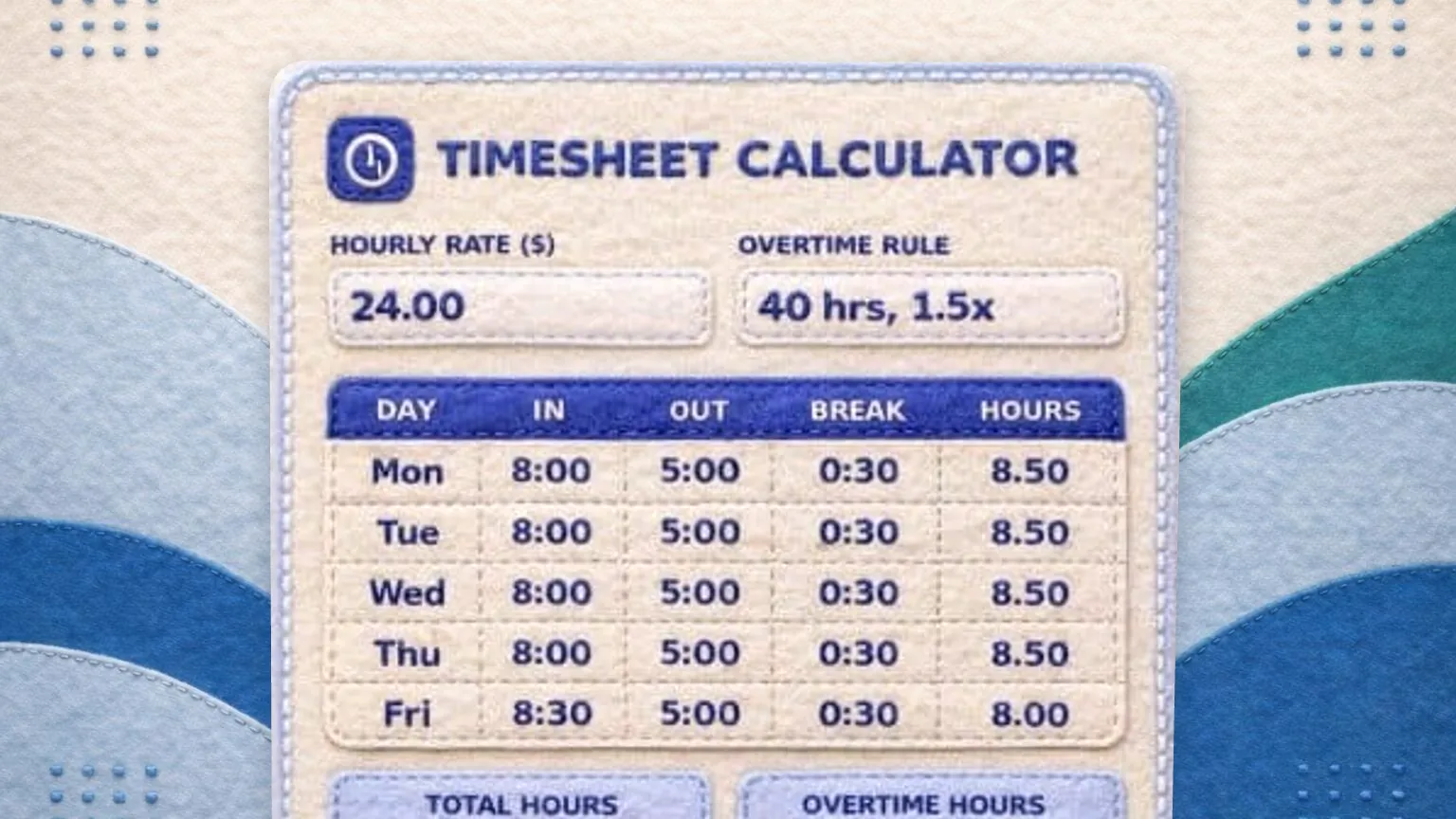
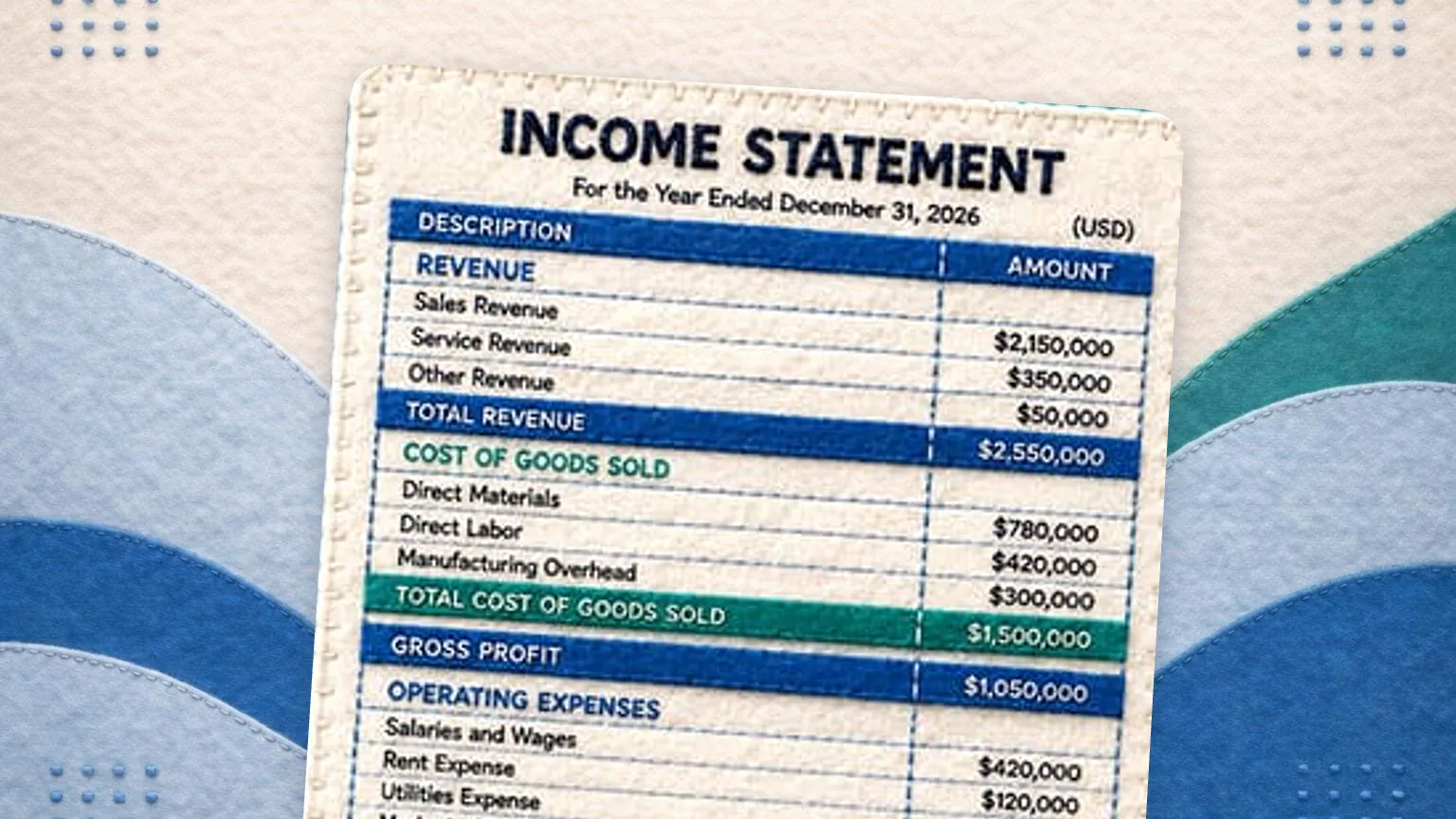



Gain financial insights with GlassJar’s custom tags. Track spending, organize expenses, and generate detailed reports. Custom tags give business owners and accountants the ability to add specific context to any transaction without altering the chart of accounts.
Instead of duplicating accounts for every location, department, or campaign, tags make it easy to track financial activity from multiple perspectives. This flexible layer of categorization supports better reporting, strategic planning, and financial control.
Tag Transactions for Better Organization
Easily assign custom tags to categorize transactions by project, department, location, or any criteria that matter to you. No more sifting through spreadsheets.
Generate Custom Reports with Ease
Filter and sort transactions based on your tags to create tailored financial reports. Get a clear breakdown of your spending, revenue, and cash flow trends in just a few clicks.
Improve Budgeting & Expense Tracking
Use tags to monitor business expenses, track project costs, and compare spending across categories. Gain better financial insights and stay on budget with less effort.

“It’s everything QuickBooks should have been. We’re moving all of our clients over to GlassJar.”
– Ryan David
Green Valley Accounting
Make Better Sense Of Financial Data With Custom Tags
✔ Custom tags to categorize transactions your way
✔ Detailed reports for smarter financial decisions
✔ Better expense tracking to monitor spending
✔ Easy tax prep with tagged deductible expenses
✔ Posts straight to your general ledger
Take Control of Your Finances with Custom Tags
Organize transactions, simplify reporting, and gain better insights. Try GlassJar for free and start tagging today.

The Power of Custom Tags in Small Business Accounting
Streamline Complex Data
In growing businesses, expenses and income often overlap across projects, clients, or locations. Custom tags allow users to slice financial data without adding confusion. Tags help clarify exactly what each transaction is for, from customer refunds and seasonal campaigns to product lines and internal cost centers.
Tag Transactions for Project-Based Tracking
Understand Project Profitability
When working across multiple client engagements or internal initiatives, it becomes essential to know which projects are driving results and which are costing too much. GlassJar’s custom tags let users associate every expense or sale with a project code. This allows project-level profitability analysis without the need for separate accounts or external spreadsheets.
Align Team Activity to Tagged Projects
Custom tags can be applied to invoices, bills, and journal entries. This ensures that all team members are operating within the same tagging structure and enables business owners to see a full picture of financial activity tied to each project. Reports can then be filtered by tag to review margins, performance, and billable vs. non-billable costs.
Segment Financial Data Without Adding Accounts
Reduce Account Clutter
Many accounting systems require users to create unique accounts for every minor distinction, such as “Meals – New York” and “Meals – San Diego.” GlassJar eliminates the need for these redundant accounts by letting users apply a location tag instead. The same base account, “Meals & Entertainment,” can be used across the business while tags provide the additional layer of detail needed.
Clean Reports With Flexible Sorting
By separating classification (accounts) from categorization (tags), GlassJar gives users control over how they view their reports. Want to group transactions by vendor? Or by department? Or by campaign? With tags, you don’t need to rewire your account structure. Just filter or group by tag.
Track Initiatives With Tags

Follow Spending by Campaign, Client, or Category
Tag the costs of initiatives like “Product Launch Q1,” “Client Onboarding,” or “Trade Show,” then run a tag report to see what each one has cost so far.
Analyze Profitability by Tag
Full Visibility Into Margins
Assigning tags across income and expenses lets you determine profit margins for any aspect of your business, including specific clients, product lines, events, or seasonal campaigns. This level of insight helps business owners prioritize high-margin initiatives and phase out underperforming ones.
Compare Tags Over Time
By analyzing how each tag performs month over month or year over year, users can uncover trends and make informed decisions about where to invest time and resources. Tag-based performance metrics are particularly valuable in service industries, event planning, and consulting, where direct and indirect costs vary widely between projects.
Create Tag Categories for Better Organization
Structure Tags by Purpose
GlassJar allows users to group tags under custom categories. For example, a company might use categories such as:
- Clients: Client A, Client B, Client C
- Locations: HQ, West Coast, Midwest, Online Sales
- Campaigns: Q1 Launch, Summer Sale, Year-End Push
- Departments: Marketing, Product, Fulfillment, Finance
This structure keeps tag management clean and searchable while improving consistency across the business.
Prevent Tagging Errors
Tag categories reduce the risk of duplication and human error. Rather than manually typing in freeform tags (which could lead to typos or mismatches), users can select from a dropdown of approved tags within a defined category. This standardization keeps reports clean and aligned across all departments.
Filter Reports With Tag Precision
P&L Reports by Tag
GlassJar allows businesses to generate Profit & Loss reports for specific tags. Want to know how much you earned and spent on the “Webinar Series Q3” initiative? Or what your margins were for “Client B” last month? With custom tags, those answers are instantly available without exporting to Excel or modifying accounts.
Cross-Filter by Account and Tag
Users can combine account-level filters with tag-based filters to view financial data with precision. For example, filter for all “Software Subscriptions” tagged with “Marketing Department” to see only the SaaS tools billed to marketing. These detailed reports help whoever owns a budget manage it better.

“GlassJar is an accounting software game-changer.”
– Danielle Kenmore
Parker & Wilson Accounting
Assign Tags to Invoices and Bills

Tag Customer Invoices
Custom tags can be applied to outgoing invoices. This means any income generated through client billing can be tracked against a tag, such as a project name, campaign, or internal cost center. This makes it easier to analyze how much each initiative is bringing in, and compare it against costs.
Tag Vendor Bills
Incoming bills can also carry tags. A photography vendor’s invoice tagged with “Holiday Campaign” and “Marketing” will later be grouped with all other related transactions. Printing, shipping, software, and hourly work can all be sliced by tag to match the way business is actually conducted.
Manage Departmental Spending With Ease
View Expenses by Department Tag
Assigning department tags across expenses and income makes it possible to build department-specific financial statements. This supports internal accountability and lets leaders monitor spending throughout the month. No need for department-specific accounts. Just use a “Department” tag and choose the appropriate value at the point of entry.
Share Department Reports
Share a tag report with each department head so they see their own numbers without sifting through irrelevant data, while you keep full control over the master ledger.
Tags for Asset Tracking
Tag Purchases to Specific Assets
When a business purchases equipment, technology, or furniture, the transaction can be tagged to a specific asset or asset group. This helps track all spending related to that item, including initial purchase, upgrades, maintenance, or repairs.
Track Recurring Initiatives Over Time
Group Seasonal or Repeating Events With a Tag
Recurring campaigns, such as annual sales events, quarterly product drops, or seasonal hiring, can all be tracked over time using a single tag. The tag “Annual Spring Event” can be used every year to monitor how the event evolves. This supports long-term benchmarking and helps measure return on investment.
Compare Year-Over-Year Performance
By using the same tag consistently across years, users can build comparative reports. For example, by tagging all revenue and expenses related to “Summer Sale” each year, you can build a multi-year trend report that reveals whether marketing and product changes have paid off.
Allocate Shared Costs With Tags
Simplify Internal Allocations
If one department incurs costs on behalf of another, tagging makes it easier to allocate expenses during month-end. Internal transfers, shared expenses, and overhead can all be tracked using custom tags, ensuring accurate allocations without overcomplicating account structures.
Frequently asked questions
What is a custom tag in accounting software?
A custom tag is a label applied to a transaction in addition to its account, so that the same transaction can be grouped in more than one way. The chart of accounts answers what a cost was. A tag answers which job, location, client or campaign the cost belonged to.
What is a custom tag report?
A custom tag report filters the books by tag rather than by account, which produces a view of income and expenses for one job, one location or one client. The report reuses figures that are already in the books, so no separate tracking spreadsheet is required.
How do tags differ from the chart of accounts?
The chart of accounts is a single structure, and every transaction belongs to exactly one account within it. Tags sit alongside that structure and can be applied in combination. A business that adds a new account for every project ends up with a chart of accounts that is unusable within a year, which is the problem tags exist to solve.
What do small businesses most often tag?
Small businesses most often tag by job or project, by location, by client, and by marketing campaign. The common thread is a question the chart of accounts cannot answer on its own, such as whether a particular job was profitable once every cost attached to it is counted.